Configuration
Web Interface
The web interface can be accessed through http://[DEVICEIP] . A fresh image has the IP 192.168.157.1 (for a Base system) and 192.168.158.1 (for a Mobile system). For IP configuration see Local Network / Configuration / Local Network.
Full configuration
to fully configure your new SKIDER Device follow these instructions:
- Perform Local Network Setup
- Perform Mobile Network Setup
- Perform VPN Setup
- Perform Short Range Setup
- Perform Base/Mobile specific Setup
Pages
Home
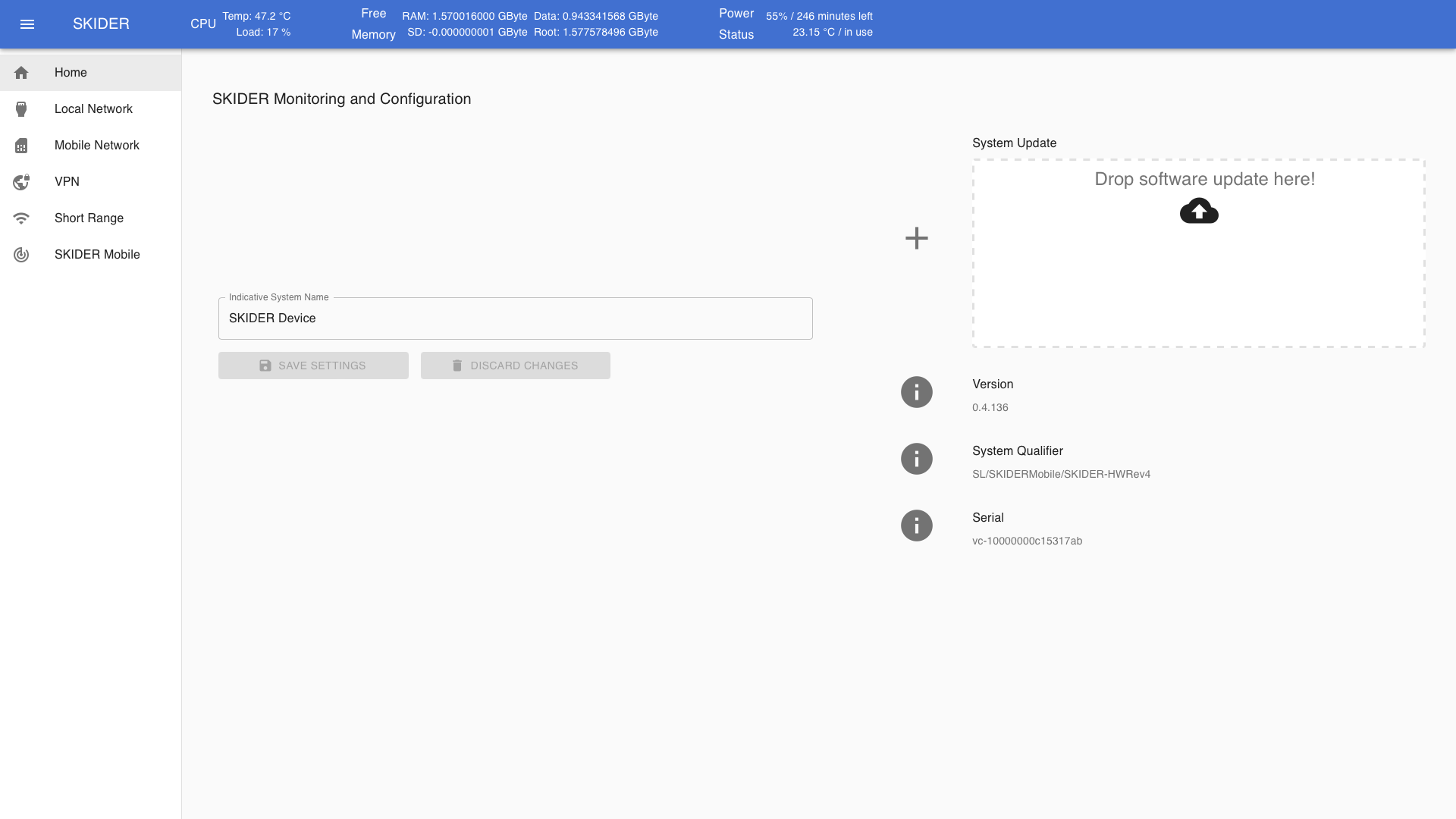
On the start page you can configure the Indicative System Name to better differentiate between multiple system configuration pages.
- Some information is shown on the right side of the page:
Version- currently installed software version of the device (and potentially the option to update to a newer available software version)
System Qualifier- system qualifier of your device
Serial- serial number of your device
Sensor Status
only available on a Base system!
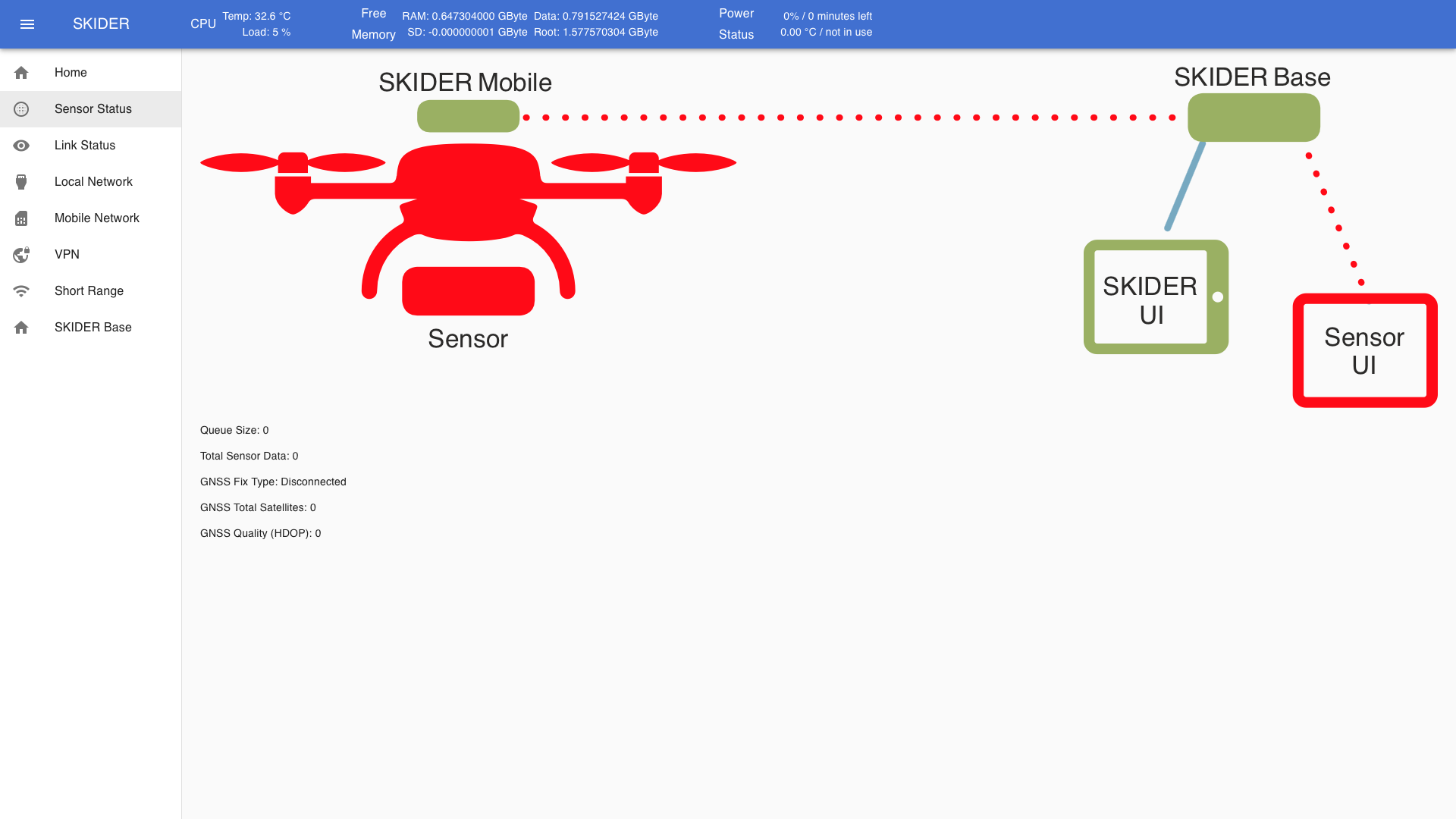
A small overview over the entire system status and performance.
Green- connected / operational
Red- not connected / no data being sent
Link Status
only available on a Base system!
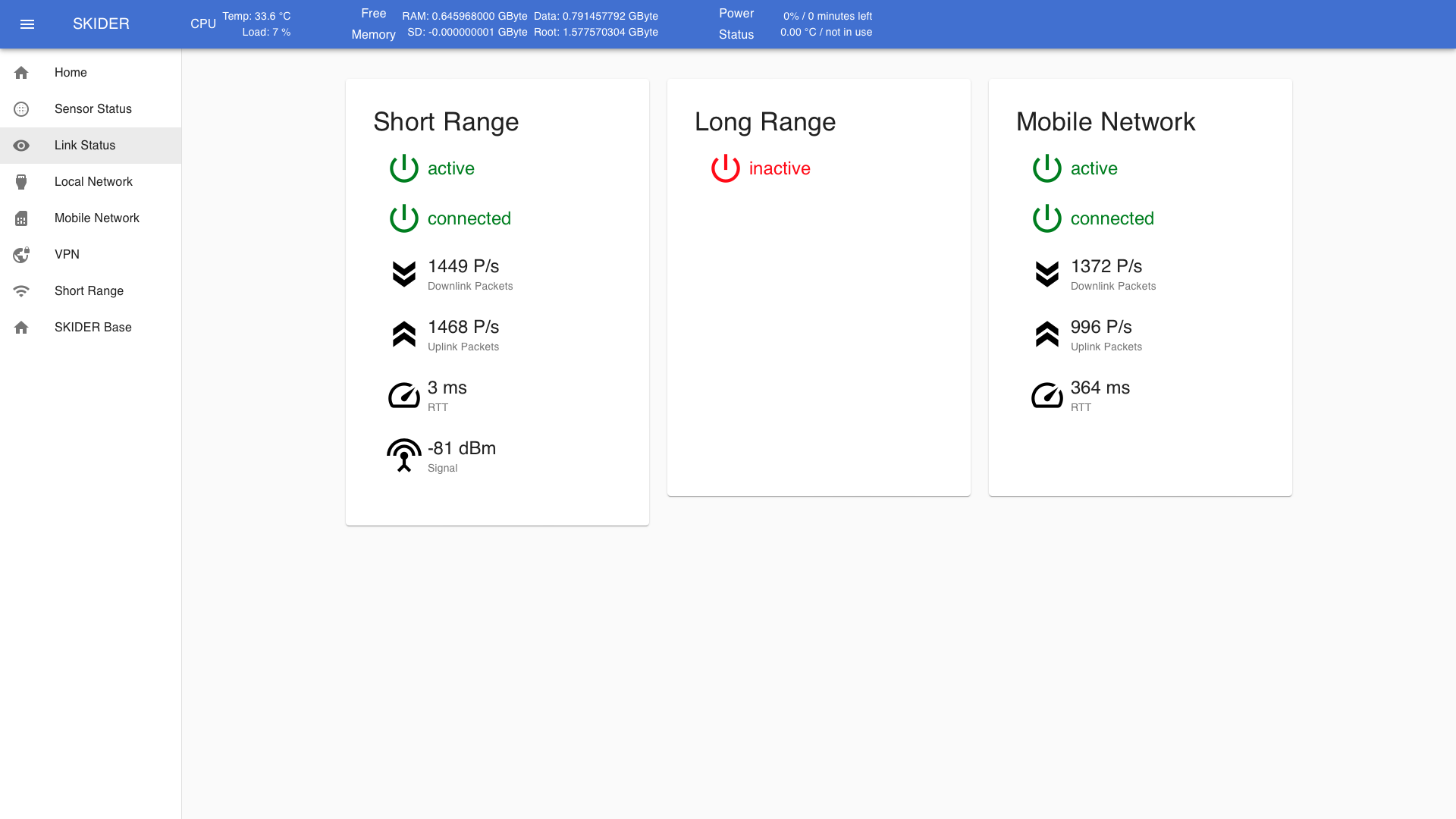
An overview over the different Link technologies and their respective status and performance.
Short Range
active- short range is active and being used
connected- connection established to Mobile system
Downlink Packets- packets being received from Mobile system per second
Uplink Packets- packets being sent to Mobile system per second
RTT- Round Trip Time in ms
Signal- signal strength in dBm
Long Range
inactive- in this example long range is disabled in the configuration (see Long Range Connection for details)
- if long range would be configured as active the status and performance would be shown here similar to the other link technologies
Mobile Network
active- mobile network is active and being used
connected- connection established to Mobile system
Downlink Packets- packets being received from Mobile system per second
Uplink Packets- packets being sent to Mobile system per second
RTT- Round Trip Time in ms
Local Network
Configuration
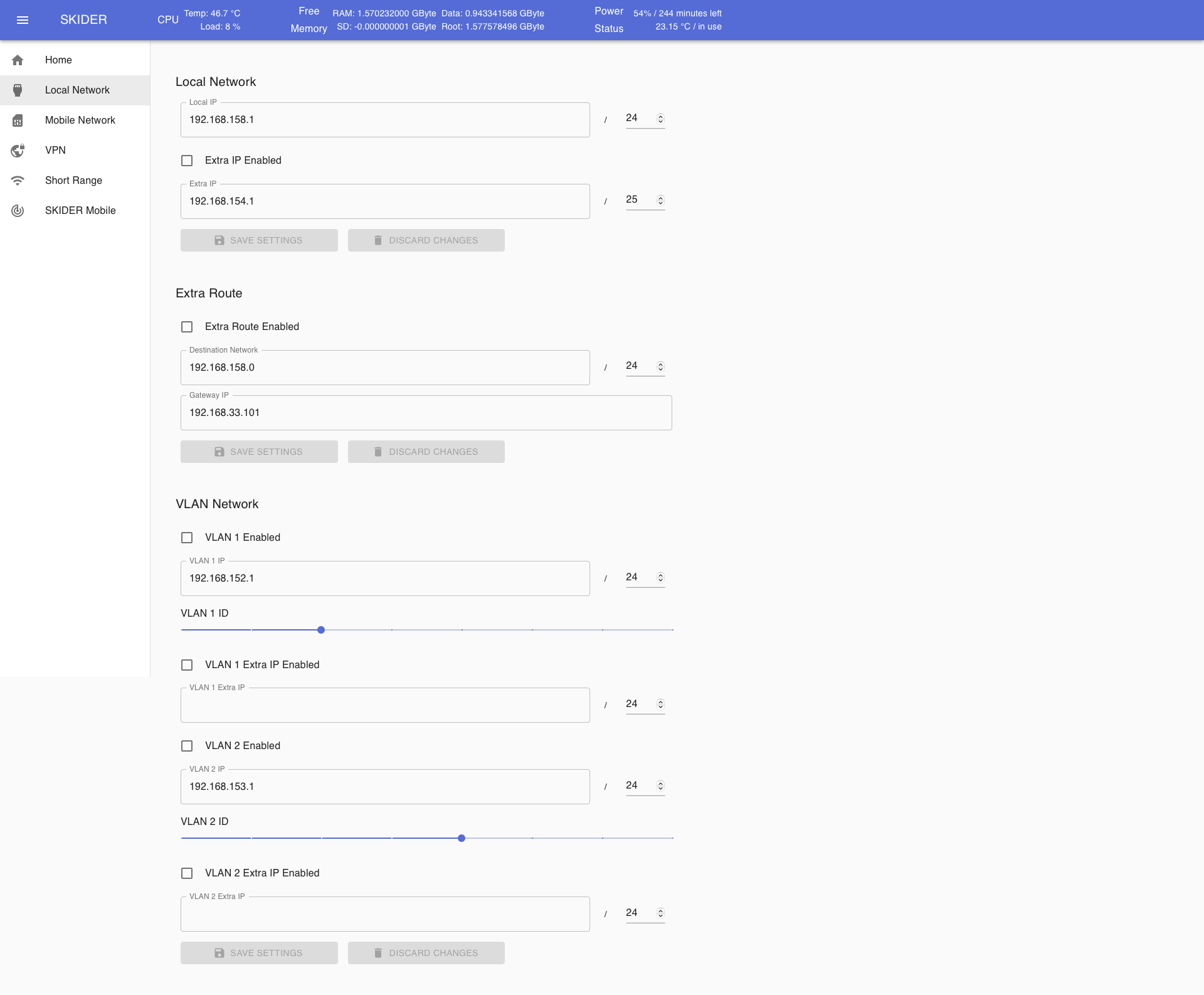
On the Local Network tab you can configure several IPs:
Local Network
Local IP- the local ip address of the device on the ethernet port
Extra IP- an additional ip address on the ethernet port (optional)
Extra Route
(optional)
Destination Network- the ip address range of the destination network
Gateway IP- the ip address of the desired gateway for the extra route
VLAN Network
(optional, up to two VLAN networks can be configured here)
VLAN IP- the ip address in the VLAN
VLAN ID- the ID of the desired VLAN (corresponds to the VLAN IEEE 802.1Q Tag)
VLAN Extra IP(optional)- an additional ip address in the configured VLAN for this device
Mobile Network
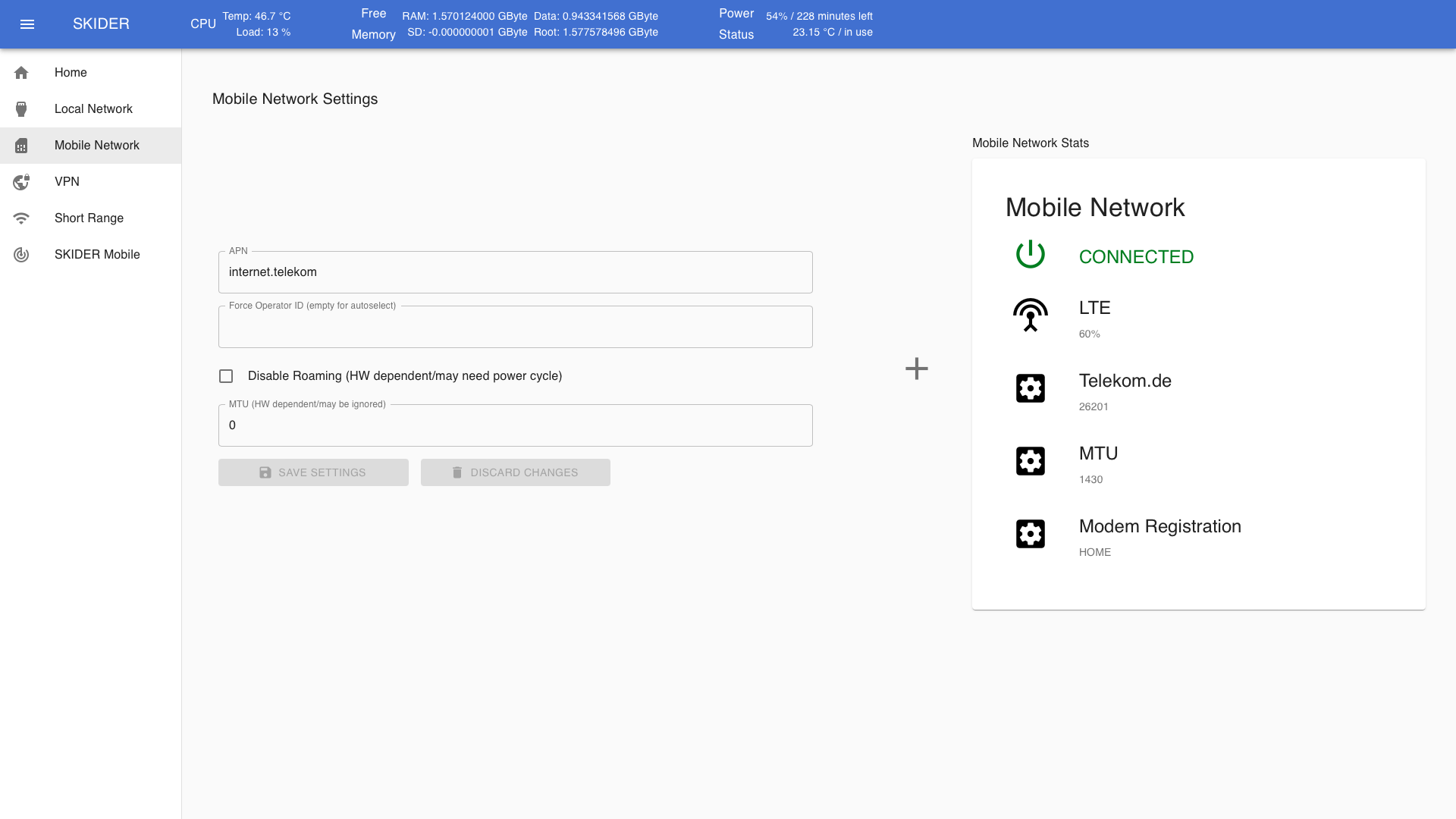
Configuration
APN- (required)
- the APN of the cell service provider
Force Operator ID- (optional)
- If not set, the Operator ID is selected automatically
Disable Roaming- (optional)
- If not set, the roaming state is selected automatically
MTU- If set to "0", the MTU is set automatically
- Ensure that SIM PIN is disabled before inserting (usually pre-configured for m2m sims)
- Insert SIM card into the device (see Hardware Setup / Maintenance Bay / SIM card provisioning for instructions)
- Reboot the System (SIM will only be detected upon reboot)
- Check status of Link in web interface / "Mobile Network" tab
VPN
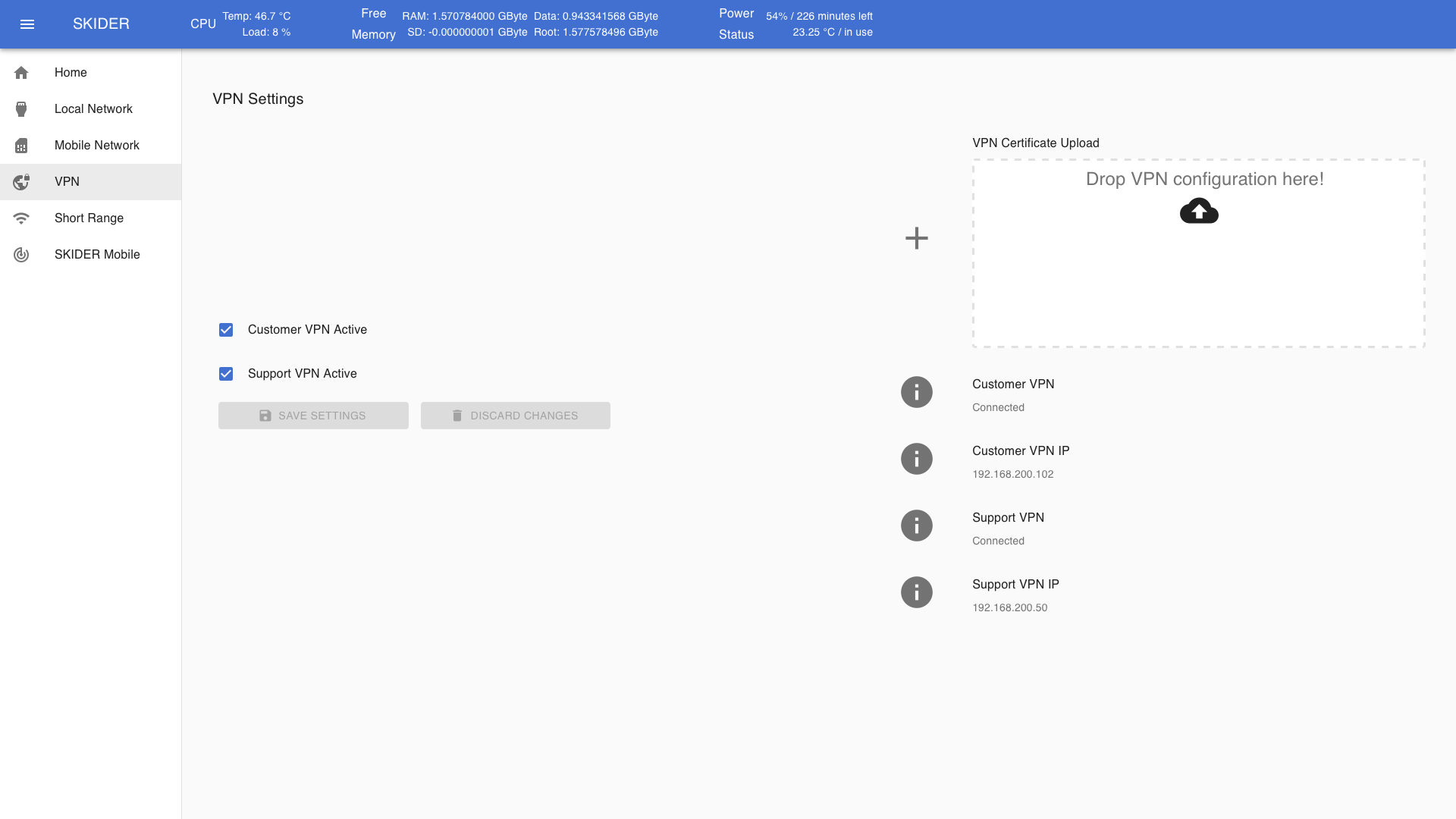
Configuration
- Obtain VPN configuration from Smart Robotic Systems or set up VPN server
- Upload VPN cofiguration file in "VPN" tab. The certificates are linked to statically assigned IPs, which will be shown in the interface under "Customer/Support VPN IP".
- Check VPN status in web interface
General VPN Concept
In order to let SKIDER Base and SKIDER Mobile communicate over LTE with each other they may need to connect to a common VPN server. Smart Robotic Systems offers a hosted VPN server and all SKIDER devices come with preinstalled credentials to access a customer specific VPN server. Each device has a fixed vpn-internal IP address.
In addition, the SKIDER support VPN can be used to obtain support from our engineering team through the mobile connection. It is suggested to disable the support VPN after initial commissioning.
Short Range
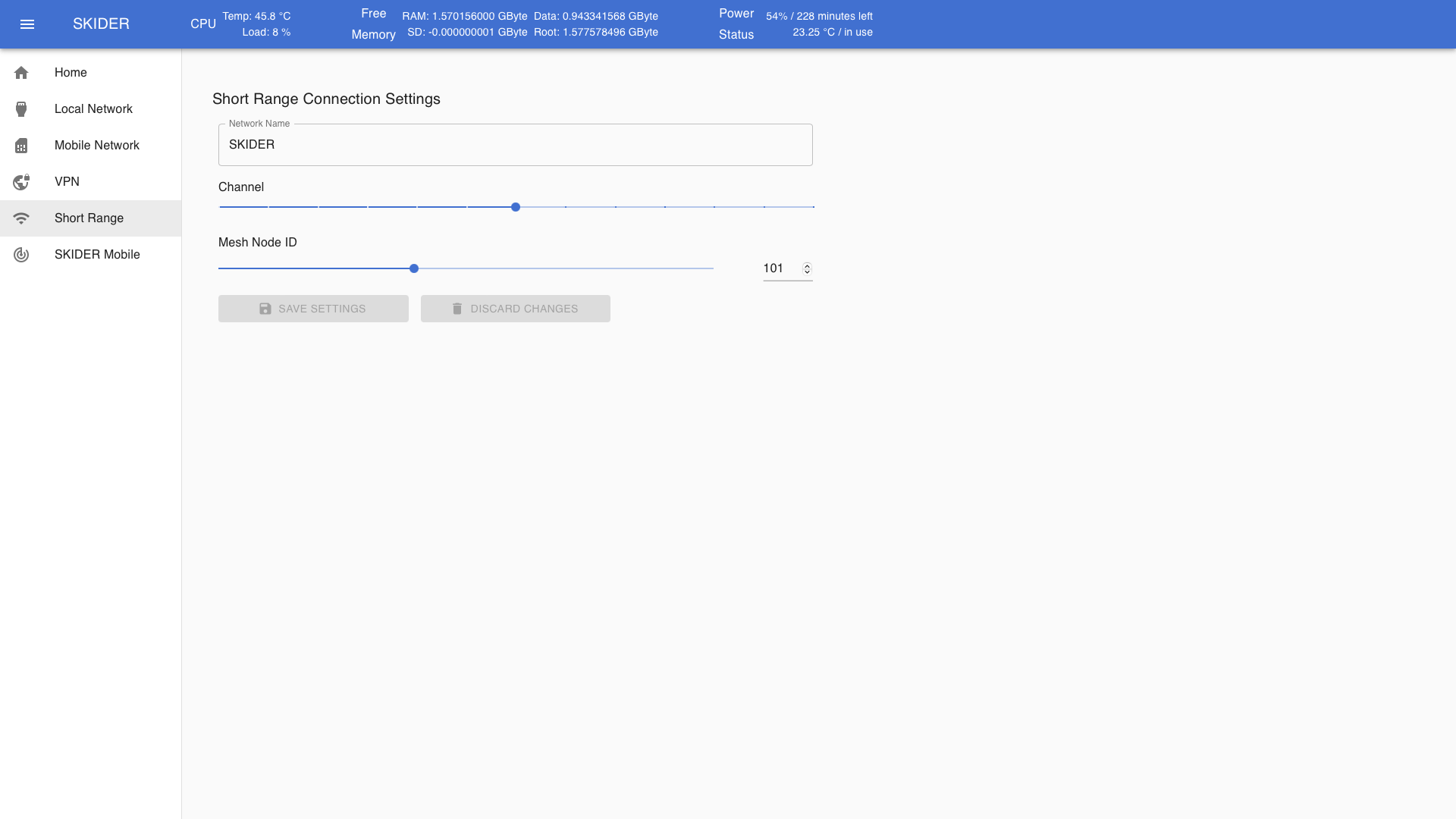
Configuration
Network Name- SSID of the WiFi Mesh
Channel- Channel of the WiFi Mesh
- default: 7
Mesh Node ID- ID of this node in the WiFi Mesh -> translates to the last octet of the IPv4 address
- e.g. ID 1 would translate to
192.168.33.1, ID 101 would translate to192.168.33.101 - default base: 1
- default mobile: 101
SKIDER Base
only available on a Base system!
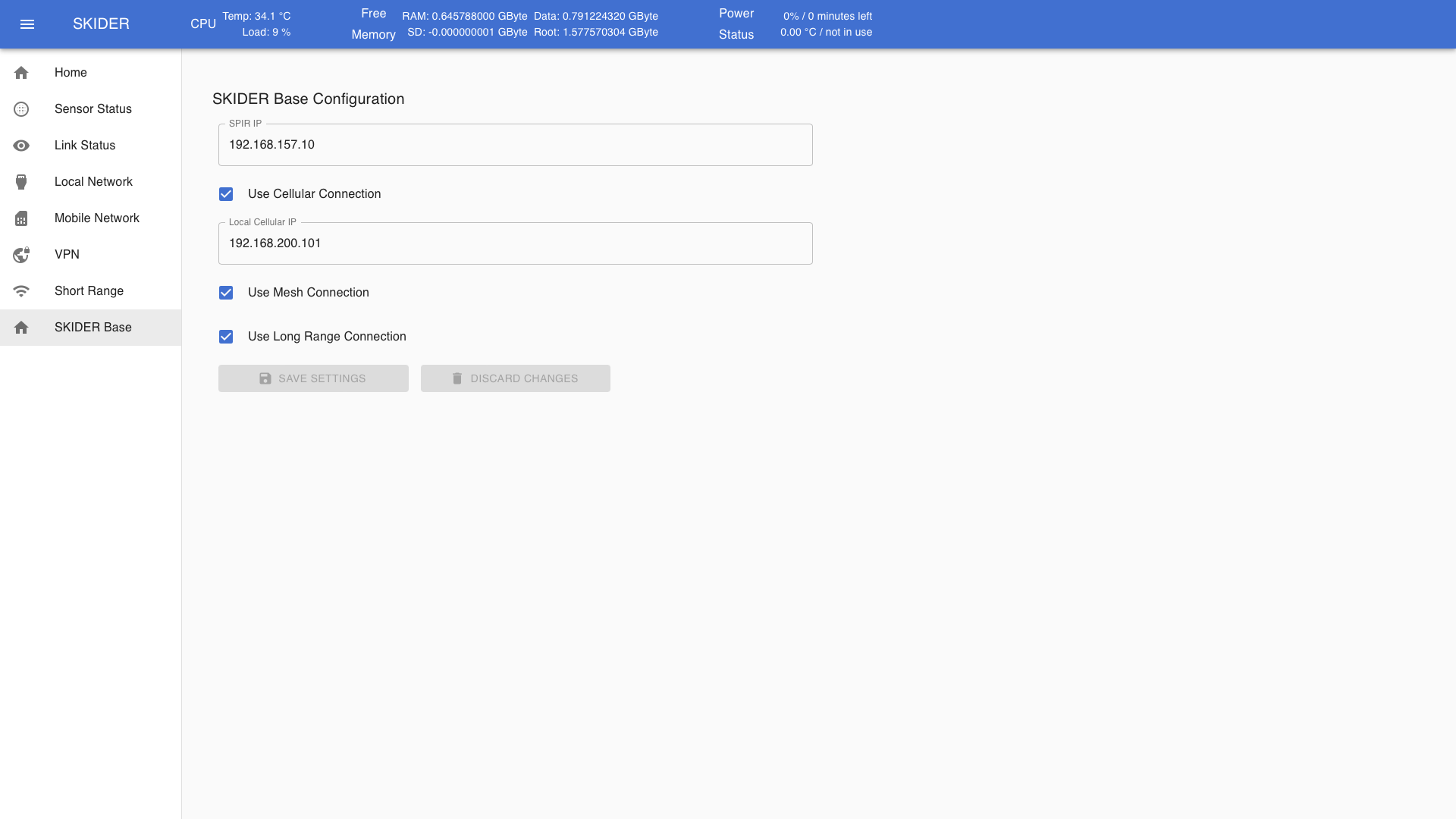
Miscellaneous
SPIR IP- IP address of a Laptop running the SPIR software suite. The IP address of this Laptop has to be configured to be in the same subnet as the Base system.
Cellular Connection
Use Cellular Connection- uncheck to disable cellular connection (Mobile Network)
Local Cellular IP- cellular IP address of this device (can be seen under VPN / Customer VPN IP)
Mesh Connection
Use Mesh Connection- uncheck to disable mesh connection (Short Range)
Long Range Connection
Use Long Range Connection- uncheck to disable long range connection (Long Range)
SKIDER Mobile
only available on a Mobile system!
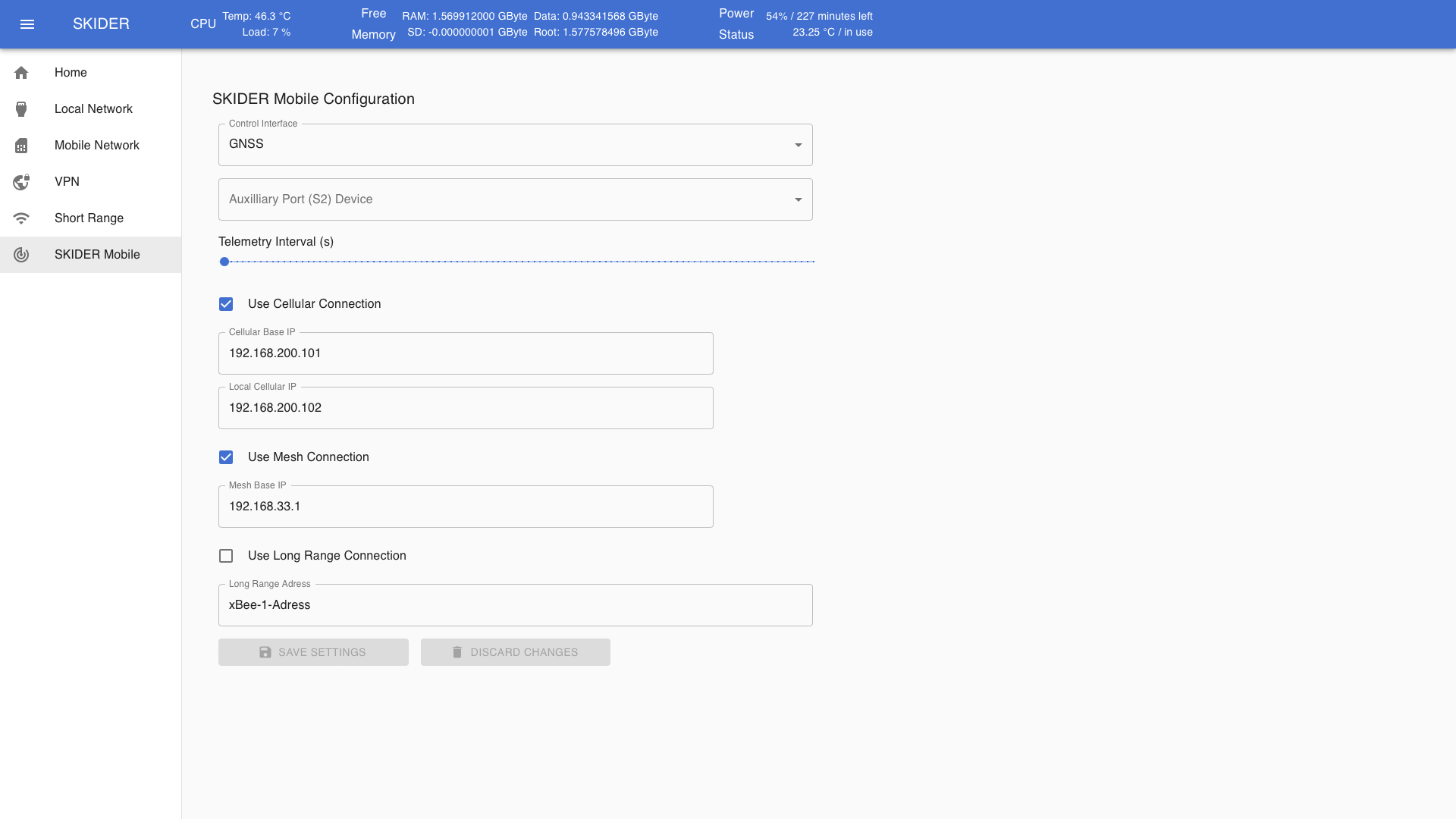
Miscellaneous
Control Interface- Control Interface of device connected to the Auxilliary Port (S2) of the Mobile system
Auxilliary Port (S2) Device- Auxilliary Port Device
Telemetry Interval (s)- Telemetry Interval
Cellular Connection
Use Cellular Connection- uncheck to disable cellular connection (Mobile Network)
Cellular Base IP- cellular IP address of the Base system (can be seen under VPN / Customer VPN IP in the webinterface of the Base system)
Local Cellular IP- cellular IP address of this device (can be seen under VPN / Customer VPN IP)
Mesh Connection
Use Mesh Connection- uncheck to disable mesh connection (Short Range)
Mesh Base IP- mesh IP address of the Base system (corresponds to
192.168.33.[MESH NODE ID], Mesh Node ID can be seen under Short Range / Mesh Node ID in the webinterface of the Base system)
Long Range Connection
Use Long Range Connection- uncheck to disable long range connection (Long Range)
Long Range Adress- address of the long range device of the Base system